User Guide
RosterBolt is a desktop app for managing team contacts, optimized for use via a Command Line Interface (CLI) while still having the benefits of a Graphical User Interface (GUI). If you can type fast, RosterBolt can get your contact management tasks done faster than traditional GUI apps.
- Quick start
-
Features
- Viewing help :
help - Adding a person:
add - Listing all persons :
list - Creating a command alias :
alias - Listing command aliases :
aliases - Removing a command alias :
unalias - Editing a person :
edit - Locating persons by keyword:
find - Viewing volunteer statistics :
stats - Deleting a person :
delete - Restoring a deleted person :
restore - Importing volunteers from a CSV file :
import - Exporting volunteers to a CSV file :
export - Clearing all entries :
clear - Exiting the program :
exit - Editing the previous command :
editprev - Saving the data
- Editing the data file
- Archiving data files
[coming in v2.0]
- Viewing help :
- FAQ
- Known issues
- Command summary
Quick start
-
Ensure you have Java
17or above installed in your Computer.
Mac users: Ensure you have the precise JDK version prescribed here. -
Download the latest
.jarfile from here. -
Copy the file to the folder you want to use as the home folder for your RosterBolt.
-
Open a command terminal,
cdinto the folder you put the jar file in, and use thejava -jar RosterBolt.jarcommand to run the application.
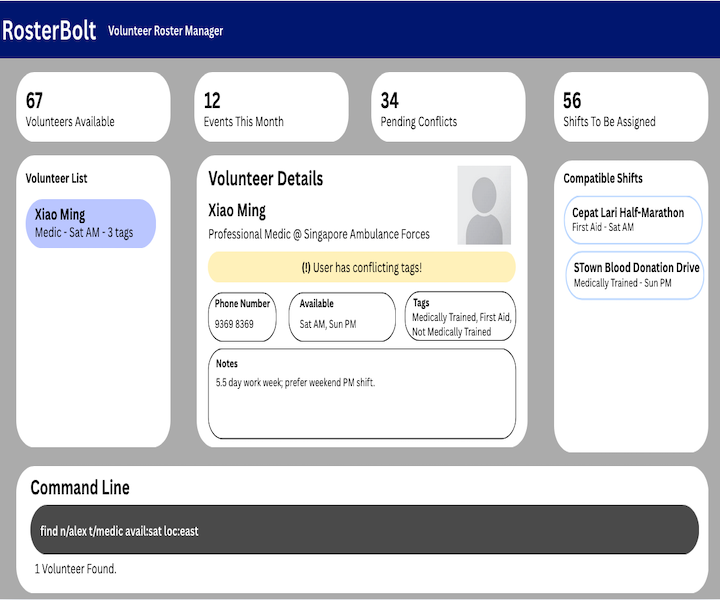
A GUI similar to the below should appear in a few seconds. Note how the app contains some sample data.
-
Type the command in the command box and press Enter to execute it. e.g. typing
helpand pressing Enter will open the help window.
Some example commands you can try:-
list: Lists all contacts. -
add n/John Doe p/98765432 e/johnd@example.com a/John street, block 123, #01-01: Adds a contact namedJohn Doeto RosterBolt. -
delete 3: Deletes the 3rd contact shown in the current list. -
clear: Deletes all contacts. -
exit: Exits the app.
-
-
Refer to the Features below for details of each command.
Features
 Notes about the command format:
-
Words in
UPPER_CASEare the parameters to be supplied by the user.
e.g. inadd n/NAME,NAMEis a parameter which can be used asadd n/John Doe. -
Items in square brackets are optional.
e.gn/NAME [t/TAG]can be used asn/John Doe t/friendor asn/John Doe. -
Items with
… after them can be used multiple times including zero times.
e.g.[t/TAG]…can be used ast/friend,t/friend t/familyetc. -
Parameters can be in any order.
e.g. if the command specifiesn/NAME p/PHONE_NUMBER,p/PHONE_NUMBER n/NAMEis also acceptable. -
Extraneous parameters for commands that do not take in parameters (such as
help,exit,clear,bin,aliasesandeditprev) will be ignored.
e.g. if the command specifieshelp 123, it will be interpreted ashelp. -
If you are using a PDF version of this document, be careful when copying and pasting commands that span multiple lines as space characters surrounding line-breaks may be omitted when copied over to the application.
Viewing help : help
Shows a message explaining how to access the help page.

Format: help
Adding a person: add
Adds a person to RosterBolt.
Format: add n/NAME p/PHONE_NUMBER e/EMAIL a/ADDRESS [t/TAG]… [r/ROLE] [nt/NOTES] [va/AVAILABILITIES]… [vr/RECORDS]…
 Tip:
A person can have any number of tags, availabilities, and records (including 0). Role and notes are optional.
Tip:
A person can have any number of tags, availabilities, and records (including 0). Role and notes are optional.
- A person is considered a duplicate if the phone number matches exactly, or the email matches case-insensitively.
-
AVAILABILITIESmust be in the formatDAY,HH:mm,HH:mm(day, start time, end time) whereDAYis a full day name (case-insensitive, e.g.,MONDAY,monday, orMonday) and start time is earlier than end time. -
RECORDSmust be in the formatyyyy-MM-ddTHH:mm,yyyy-MM-ddTHH:mm(start date-time, end date-time) and start date-time must be earlier than end date-time.
Examples:
add n/John Doe p/98765432 e/johnd@example.com a/John street, block 123, #01-01 r/Usher nt/Weekend only va/MONDAY,14:00,17:00 vr/2026-03-20T14:00,2026-03-20T17:00add n/Betsy Crowe t/friend e/betsycrowe@example.com a/Newgate Prison p/1234567 t/criminal r/Logistics nt/Prefers morning shifts va/SATURDAY,09:00,12:00 va/SUNDAY,13:00,16:00add n/Alex Tan p/91234567 e/alex@example.com a/NUS
Listing all persons : list
Shows a list of all persons in RosterBolt, optionally sorted by an attribute.
Format: list [ATTRIBUTE [asc|desc]]
- Currently supported
ATTRIBUTE:name,phone,email,role, ortag. - Order defaults to
ascwhen omitted. - Omitting
ATTRIBUTEshows the list in the default order.
Examples:
listlist namelist email desc
Creating a command alias : alias
Creates a custom alias for a supported built-in command word.
Format: alias SHORT COMMAND_WORD
-
SHORTmust be a lowercase command-word-style token. -
COMMAND_WORDmust be exactly one supported built-in command word:add,bin,clear,delete,edit,exit,export,find,help,import,list,restoreorstats. - Alias expansion replaces only the leading command word and appends the rest of the user input unchanged.
-
alias,aliases,unalias, andeditprevcannot be used as alias targets. - Aliases are treated as workflow preferences rather than roster data, so they are persisted in the user preferences file (default:
preferences.json). - If invalid aliases are detected in
preferences.jsonat startup, they are removed and shown once in the result display.
Examples:
alias ls listalias rm deletealias wipe clear
Listing command aliases : aliases
Lists all defined command aliases.
Format: aliases
Removing a command alias : unalias
Removes an existing command alias.
Format: unalias SHORT
Examples:
unalias ls
Editing a person : edit
Edits an existing person in RosterBolt.
Format: edit INDEX [n/NAME] [p/PHONE] [e/EMAIL] [a/ADDRESS] [r/ROLE] [nt/NOTES] [t/TAG]… [va/AVAILABILITIES]… [vr/RECORDS]…
- Edits the person at the specified
INDEX. The index refers to the index number shown in the displayed person list. The index must be a positive integer 1, 2, 3, … - At least one of the optional fields must be provided.
- Existing values will be updated to the input values.
- When editing tags, availabilities, or records, existing values of that field will be replaced (i.e. adding is not cumulative).
- You can remove all the person’s tags, availabilities, records, role, or notes by typing
t/,va/,vr/,r/, ornt/without specifying values after the prefix. -
AVAILABILITYformat:DAY,HH:mm,HH:mmwhereDAYis case-insensitive (e.g.,MONDAY,14:00,17:00). -
RECORDformat:yyyy-MM-ddTHH:mm,yyyy-MM-ddTHH:mm(e.g.,2026-03-20T14:00,2026-03-20T17:00).
Examples:
-
edit 1 p/91234567 e/johndoe@example.com va/MONDAY,18:00,20:00Edits the phone number, email address, and availability of the 1st person. -
edit 2 n/Betsy Crower t/ va/ vr/Edits the name of the 2nd person and clears all existing tags, availabilities, and records.
Locating persons by keyword: find
Finds persons whose fields contain any of the given keywords, optionally filtered by volunteer availability.
Format: find [m/MATCH_TYPE] [va/DAY,HH:mm,HH:mm] [KEYWORD [MORE_KEYWORDS]]
- The search is case-insensitive. e.g
hanswill matchHans - The order of the keywords does not matter. e.g.
Hans Bowill matchBo Hans - The search covers all fields: name, phone, email, address, role, notes, and tags.
-
m/kwmatches full words only. e.g.Hanwill not matchHans -
m/ssmatches substrings. e.g.Hanwill matchHans -
m/fzallows small spelling mistakes. Words that are up to 2 simple edits away (in terms of adding, removing, or changing a letter) can still match. e.g.michiganwill matchmichegan -
va/DAY,HH:mm,HH:mmfilters for volunteers whose availability covers the specified time period, i.e. the volunteer’s availability is on the same day, starts at or before the specified start time, and ends at or after the specified end time.DAYis a full day name (case-insensitive, e.g.,MONDAY), and start time must be before end time. - At least one of keywords or
va/must be provided. - When both keywords and
va/are provided, only persons matching both the keyword search and the availability filter are returned. - If
m/MATCH_TYPEis specified, at least one keyword must also be provided. - Persons matching at least one keyword will be returned (i.e.
ORsearch). e.g.Hans Bowill returnHans Gruber,Bo Yang -
MATCH_TYPEis optional. When omitted, keyword matching is used. - Currently supported
MATCH_TYPE:kw,ss,fz.
Examples:
-
find JohnreturnsjohnandJohn Doe -
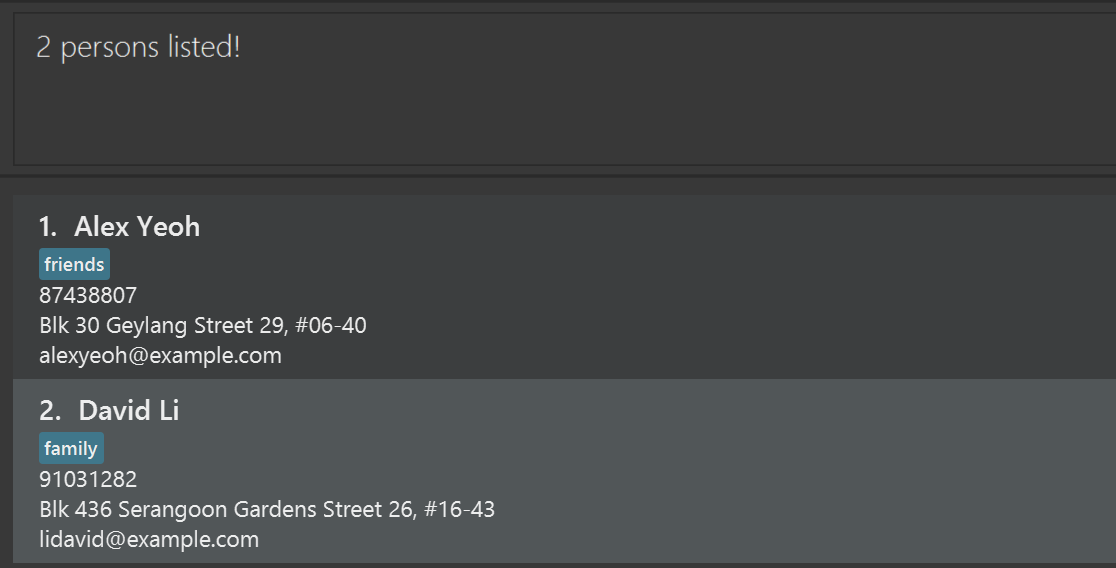
find alex davidreturnsAlex Yeoh,David Li
-
find m/kw Johnalso returnsjohnandJohn Doe -
find m/ss alireturnsAlice PaulineandAli Tan -
find m/fz michiganreturnsElle Meyer(address:michegan ave) -
find va/MONDAY,14:00,17:00returns all persons available on Monday from 14:00 to 17:00 -
find va/MONDAY,14:00,17:00 alicereturns persons matchingalicewho are also available on Monday from 14:00 to 17:00
Viewing volunteer statistics : stats
Displays volunteer statistics as text-based charts in the result display.
Format: stats CATEGORY
- Currently supported
CATEGORY:role,record. -
roleshows the percentage distribution of volunteer roles (empty roles are shown asUnassigned). -
recordshows volunteers ranked by the number of volunteer records.
Examples:
stats rolestats record
Deleting a person : delete
Deletes the specified persons from RosterBolt.
Format: delete INDEX [MORE_INDICES]
- Deletes the person at the specified indices.
- Indices refer to index numbers shown in the displayed person list.
- Indices must be positive integers 1, 2, 3, …
- Deleted persons will be added to the recycle bin.
Examples:
-
listfollowed bydelete 2 3deletes the 2nd and 3rd persons in RosterBolt. -
find Betsyfollowed bydelete 1deletes the 1st person in the results of thefindcommand.
Restoring a deleted person : restore
Restores the specified persons from RosterBolt.
You must be viewing the recycle bin to use this command. Otherwise, an error message will be shown, and no persons will be restored.
Format: restore INDEX [MORE_INDICES]
- Restores the person at the specified indices.
- Indices refer to index numbers shown in the displayed recycle bin.
- Indices must be positive integers 1, 2, 3, …
- Duplicate indices will be ignored.
- Restored persons will be removed from the recycle bin and added to the working list of kept contacts.
- You cannot restore persons who are duplicates of existing contacts in the working list.
- You cannot restore two persons who are duplicates of each other in the recycle bin.
Examples:
-
binfollowed byrestore 2 3restores the 2nd and 3rd persons in the recycle bin. -
binfollowed byrestore 3 3 2has the same behavior, as duplicate indices are ignored and the order of indices does not matter.
Importing volunteers from a CSV file : import
Imports volunteers from a CSV file into the active address book.
Format: import FILE_PATH
Examples:
import data/volunteers.csv
Exporting volunteers to a CSV file : export
Exports all active volunteers in the address book to a CSV file.
Format: export FILE_PATH
Examples:
export data/volunteers.csv
Clearing all entries : clear
Clears all entries from RosterBolt.
Format: clear
- Deleted persons will be added to the recycle bin.
Exiting the program : exit
Exits the program.
Format: exit
Editing the previous command : editprev
Loads the last successfully executed command, excluding editprev, into the command box so you can edit and run it again.
Format: editprev
- Only the last successful non-
editprevcommand is remembered for the current session. -
editprevdoes not execute the recalled command. You can change it first before pressing Enter.
Examples:
-
listfollowed byeditprevloadslistback into the command box. -
delete 1followed byeditprevloadsdelete 1back into the command box for editing.
Saving the data
RosterBolt data are saved in the hard disk automatically after any command that changes the data. There is no need to save manually.
Editing the data file
RosterBolt data are saved automatically as a JSON file [JAR file location]/data/rosterbolt.json. Advanced users are welcome to update data directly by editing that data file.
 Caution:
If your changes to the data file makes its format invalid, RosterBolt will discard all data and start with an empty data file at the next run. Hence, it is recommended to take a backup of the file before editing it.
Caution:
If your changes to the data file makes its format invalid, RosterBolt will discard all data and start with an empty data file at the next run. Hence, it is recommended to take a backup of the file before editing it.Furthermore, certain edits can cause the RosterBolt to behave in unexpected ways (e.g., if a value entered is outside of the acceptable range). Therefore, edit the data file only if you are confident that you can update it correctly.
Archiving data files [coming in v2.0]
Details coming soon …
FAQ
Q: How do I transfer my data to another Computer?
A: Install the app in the other computer and overwrite the empty data file it creates with the file that contains the data of your previous RosterBolt home folder.
Known issues
-
When using multiple screens, if you move the application to a secondary screen, and later switch to using only the primary screen, the GUI will open off-screen. The remedy is to delete the
preferences.jsonfile created by the application before running the application again. -
If you minimize the Help Window and then run the
helpcommand (or use theHelpmenu, or the keyboard shortcutF1) again, the original Help Window will remain minimized, and no new Help Window will appear. The remedy is to manually restore the minimized Help Window.
Command summary
| Action | Format, Examples |
|---|---|
| Add |
add n/NAME p/PHONE_NUMBER e/EMAIL a/ADDRESS [t/TAG]… [r/ROLE] [nt/NOTES] [va/AVAILABILITIES]… [vr/RECORDS]… e.g., add n/James Ho p/22224444 e/jamesho@example.com a/123, Clementi Rd, 1234665 t/friend t/colleague r/Usher nt/Available weekends va/SUNDAY,14:00,17:00 vr/2026-03-20T14:00,2026-03-20T17:00
|
| Alias |
alias SHORT COMMAND_WORDe.g., alias ls list
|
| Aliases | aliases |
| Unalias |
unalias SHORTe.g., unalias ls
|
| Clear | clear |
| Delete |
delete INDEX [MORE_INDICES]e.g., delete 2 3
|
| Edit |
edit INDEX [n/NAME] [p/PHONE_NUMBER] [e/EMAIL] [a/ADDRESS] [r/ROLE] [nt/NOTES] [t/TAG]… [va/AVAILABILITY]… [vr/RECORD]…e.g., edit 2 n/James Lee e/jameslee@example.com va/MONDAY,14:00,17:00
|
| Edit Previous | editprev |
| Export |
export FILE_PATHe.g., export data/volunteers.csv
|
| Find |
find [m/MATCH_TYPE] [va/DAY,HH:mm,HH:mm] [KEYWORD [MORE_KEYWORDS]]e.g., find m/kw James Jake, find m/ss ali, find m/fz michigan, find va/MONDAY,14:00,17:00, find va/MONDAY,14:00,17:00 alice
|
| Import |
import FILE_PATHe.g., import data/volunteers.csv
|
| List |
list [ATTRIBUTE [asc|desc]]e.g., list name desc
|
| Exit | exit |
| Help | help |
| Restore |
restore INDEX [MORE_INDICES]e.g., restore 2 3
|
| Stats |
stats CATEGORYe.g., stats role, stats record
|